ASIC Assure
ASIC Assure (also referred to as ASIC Warranty) delivers management tools for administering and responding to warranty coverage for ASIC equipment.
The platform enables customers to submit warranty claims while seamlessly integrating with the RC Application to monitor and document the reappearance of identical components or miners. This integration helps maintain warranty integrity by identifying instances of unauthorized component substitution that may compromise coverage eligibility.
Policies and Policy Groups
ASIC warranty is represented by a policy. All policies are created and managed through Policy Groups, which apply common properties (initial term, subsequent term, service agreement, etc.) to all included policies.
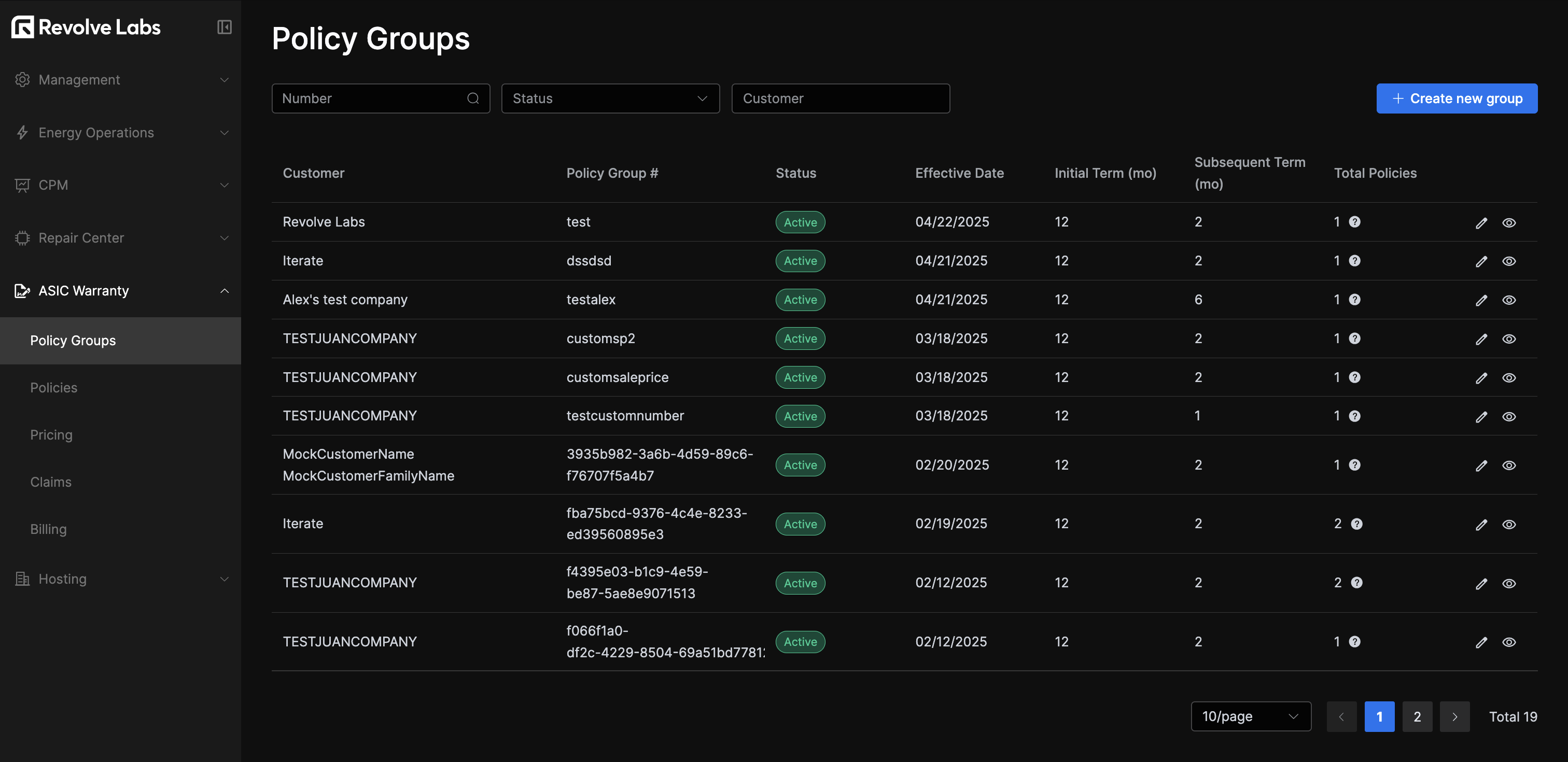
On the Policy Groups table, hovering over the icon displays the status details of policies within that group. Clicking the icon will open a dialog for editing the group, and clicking on the icon will open the linked Service Agreement file (usually a PDF). The table can be filtered by status, group number, or customer.
To create a policy group, click "Create new group" on the top right, and fill in the modal forms.
Individual policies (one per miner) are displayed on the Policies tab:
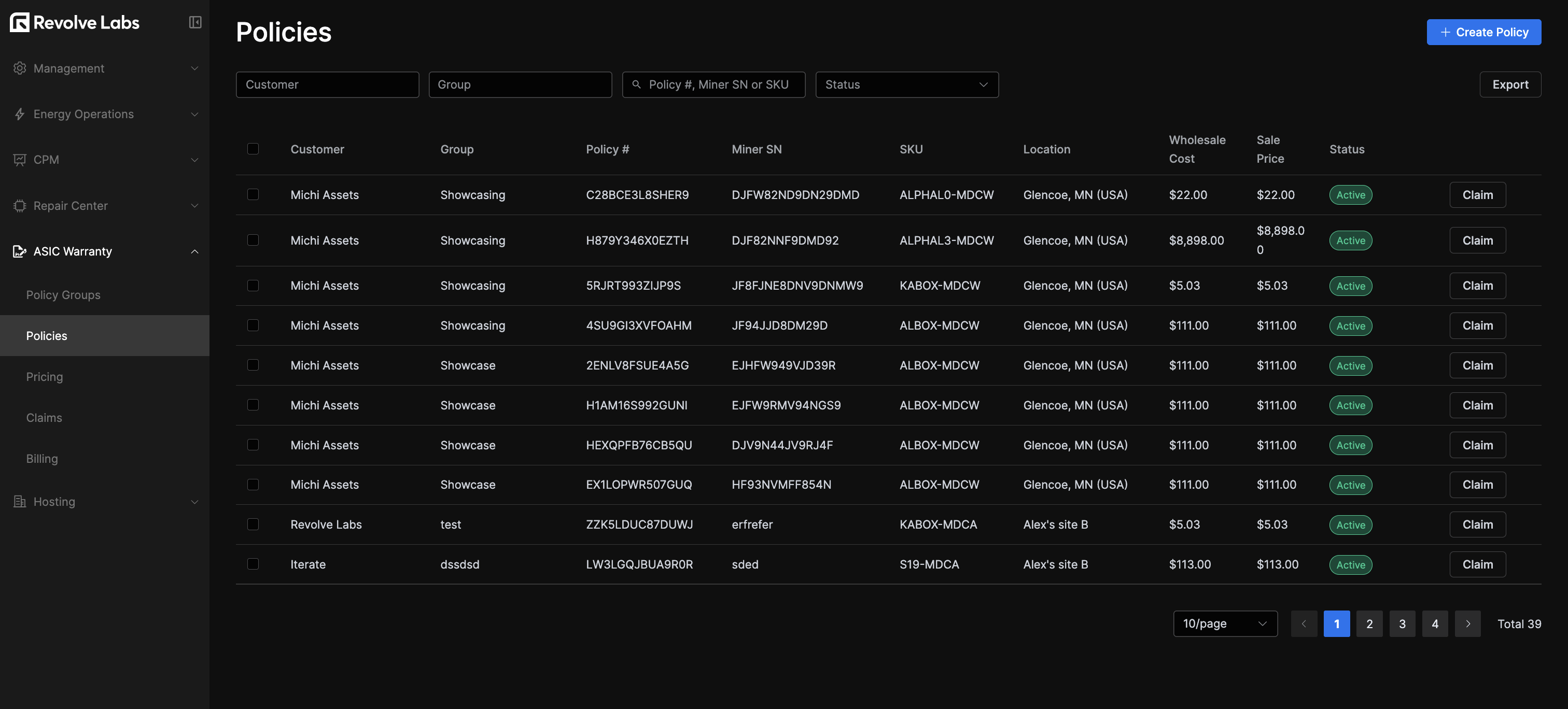
Selecting at least one checkbox from the table will reveal a button for bulk-update operations:
Clicking the Claim button at the end of a row allows managers and customers to submit claims as needed through the dedicated interface:
The claims are then accessible from the Claims table.
Claims
In the Claims view, you'll see the list of all claims in the system. Claims can be filtered and searched by any ID field.
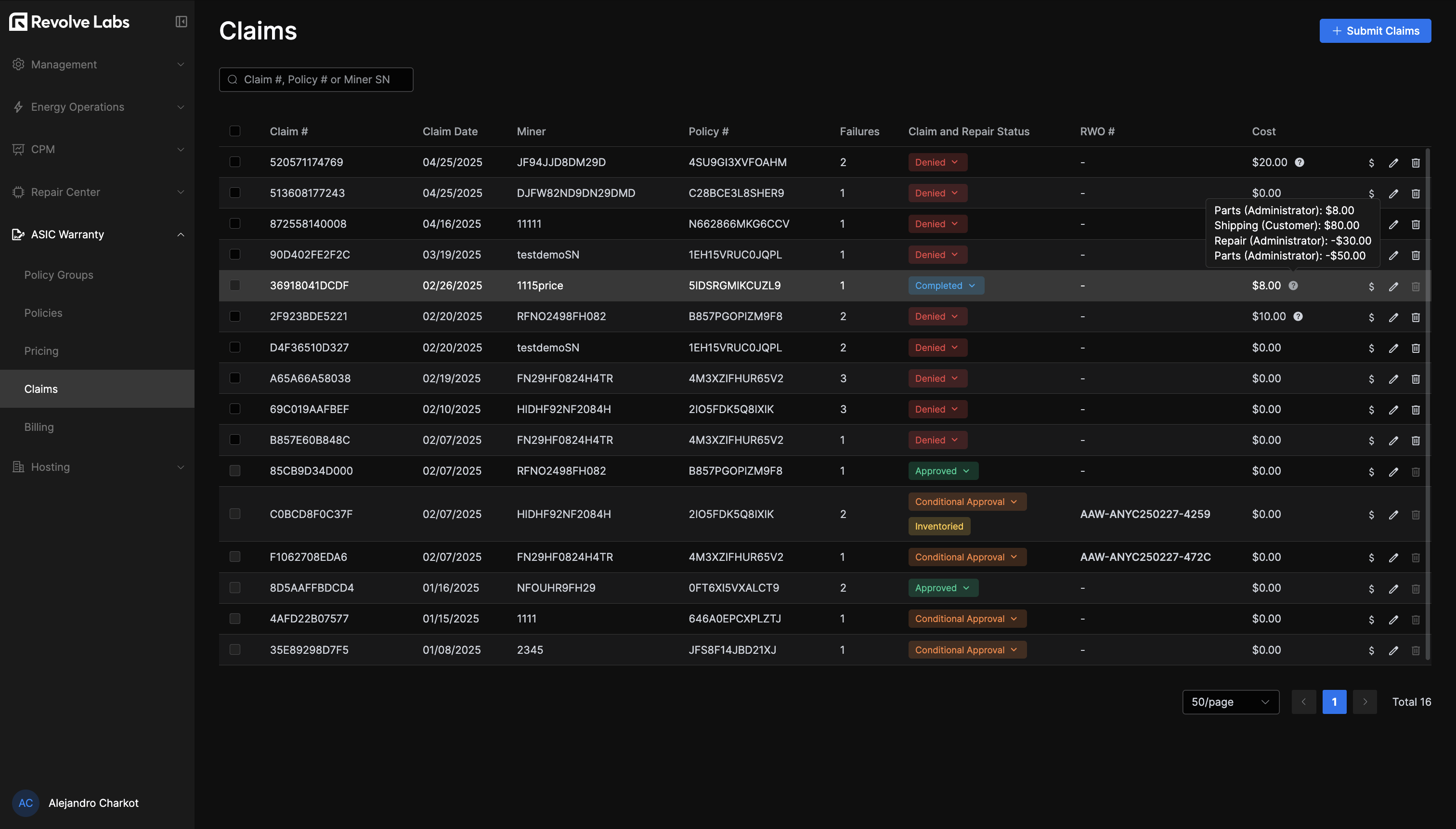
From here you can also update a claim's status, add costs, edit the claim, bulk-delete them, and check out their history and details:
You can also submit claims by clicking the top-right button, which will open the same form that is accessible from the Claims table.
Pricing
When creating policies, default prices —broken down by SKU Details, Repair, Labor, and Shipping Costs— are pulled from the prices table based on Miner Model Family:
In order to create a set of prices for a miner family, click the "Add Model Family" in the top right corner and enter the prices. You can later update them by clicking the icon, see the Model Family pricing history by clicking the icon and delete it with the icon.
Billing
The billing section breaks down into three subsections: Claim Invoices, Premium Invoices, and Balance Sheet.
The Claim Invoices table shows all invoices related to claims costs. From here you can create new invoices, edit existing ones, view attached documents and display a by-party breakdown while filtering by period, status and recipient.
You create claim invoices from existing claims:
The Premium Invoices table shows invoices for customers service subscriptions. From here you manage their status, create new ones and delete existing ones.
Premium invoices allow recording of customer premiums per policy group based on individual policy cost, underwriting fee, and commissions:
Finally, the Balance Sheet section provides an overview of all per-party billing activities, aggregating charges to display total amounts billed, paid, and outstanding for each party.