Documents
Note
Customers are the root of the work management process, and they need to be in place before their Repair Service Agreements, Repair Requests and Work Orders can be created, their miners onboarded, and their shipments tracked within the system. Refer to Management for more information on how to create and manage customers.
Repair Service Agreements
A PDF copy is required to create a Repair Service Agreement. Click on Add new RSA, set the term, and click the file picker to look up the PDF, or drag and drop it into the upload area.
You can update it at any time by clicking "Add new version". The most recently-added version will always be the active one.
Repair Requests
TIP
Active services are required before you can create Repair Requests and an active Repair Service Agreement in order to approve them.
Repair requests can be created by both customers and managers. Customers with appropriate permissions can access the Repair Request Submissions menu to issue new requests and track existing status::
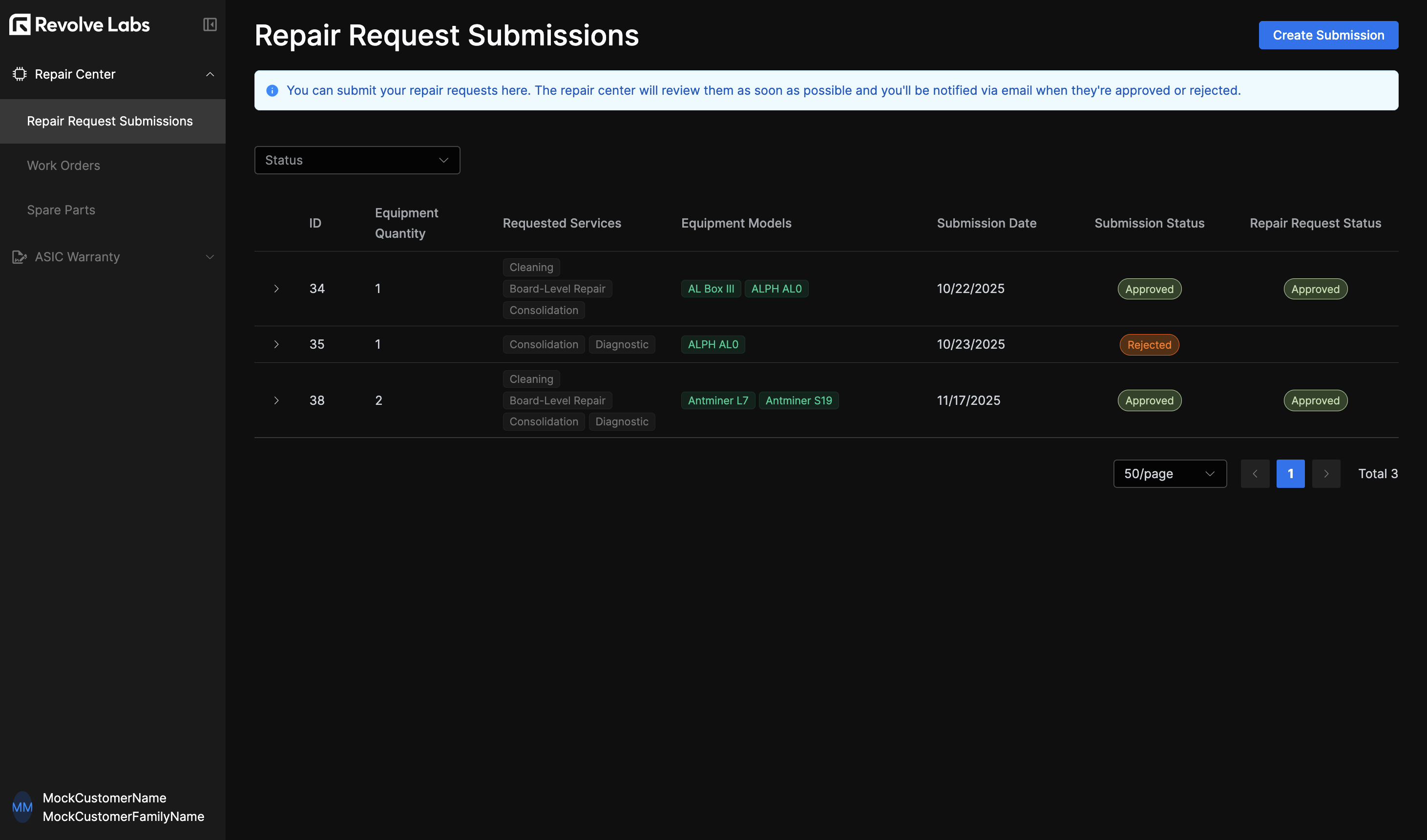
Requests created via this method will be in "Under Review" status until an admin approves or denies them.
To initiate one as a manager, go to the customer's details view, then to the Repair Request tab and click Initiate Repair Request. You'll be prompted for number of miners, model families, scope of work (where you'll set the services in scope for this Repair Request), custom fees (used later in billing) and the Repair Request document, if any.
All Repair Requests, whether by managers or by customers, will be created in "Under Review" status. It can then be denied or approved by a manager. If denied it can no longer be modified. In case it's denied by error, another repair request will have to be created with the same information. It can be edited by clicking the icon.
If approved, a Work Order will be created for it in the Work Orders tab, linking forward to the Work Order dashboard, and back to the Repair Request.
From there, the Repair Request can be eventually updated, cancelled or completed.
INFO
The repair request cannot be marked as "Complete" until the corresponding work order reaches a final status.
Legal Documents
To use the application, customers are required to accept the "Terms of Service", "Privacy Policy" and "End User License Agreement".