Work Orders
Work orders act as the central hub for operations. This interface facilitates the management of operations on associated Miners and Logistics, generation of Invoices in the Billing tab, and exchange of Messages with customers. Progress is tracked on a summary page, which customers can also access.
The typical Repair Work Order process begins with one or more inbound shipments where equipment arrives in inbound containers. The containers are opened and the equipment is inventoried (documenting models, SNs, MAC Addresses, etc.), with any shipping damage documented with supporting photos.
Diagnostics and repair work then proceeds according to the scope outlined in the Repair Request. This primarily occurs on the miner repairs page.
As repairs are completed, equipment is assigned to outbound containers. Invoices are generated in the Billing section and organized by outbound container. Once repairs are invoiced and payment received, outbound containers are assigned to an outbound shipment with tracking information. When all equipment has been returned, the Repair Work Order can be marked complete, fulfilling the Repair Service Request.
Work Order List
The Work Orders link on the sidebar takes you to the list page, where you can see Work Orders across customers. Here you can set their priorities, filter by various criteria, and export the list as CSV.

Work Order Dashboard
Summary Tab
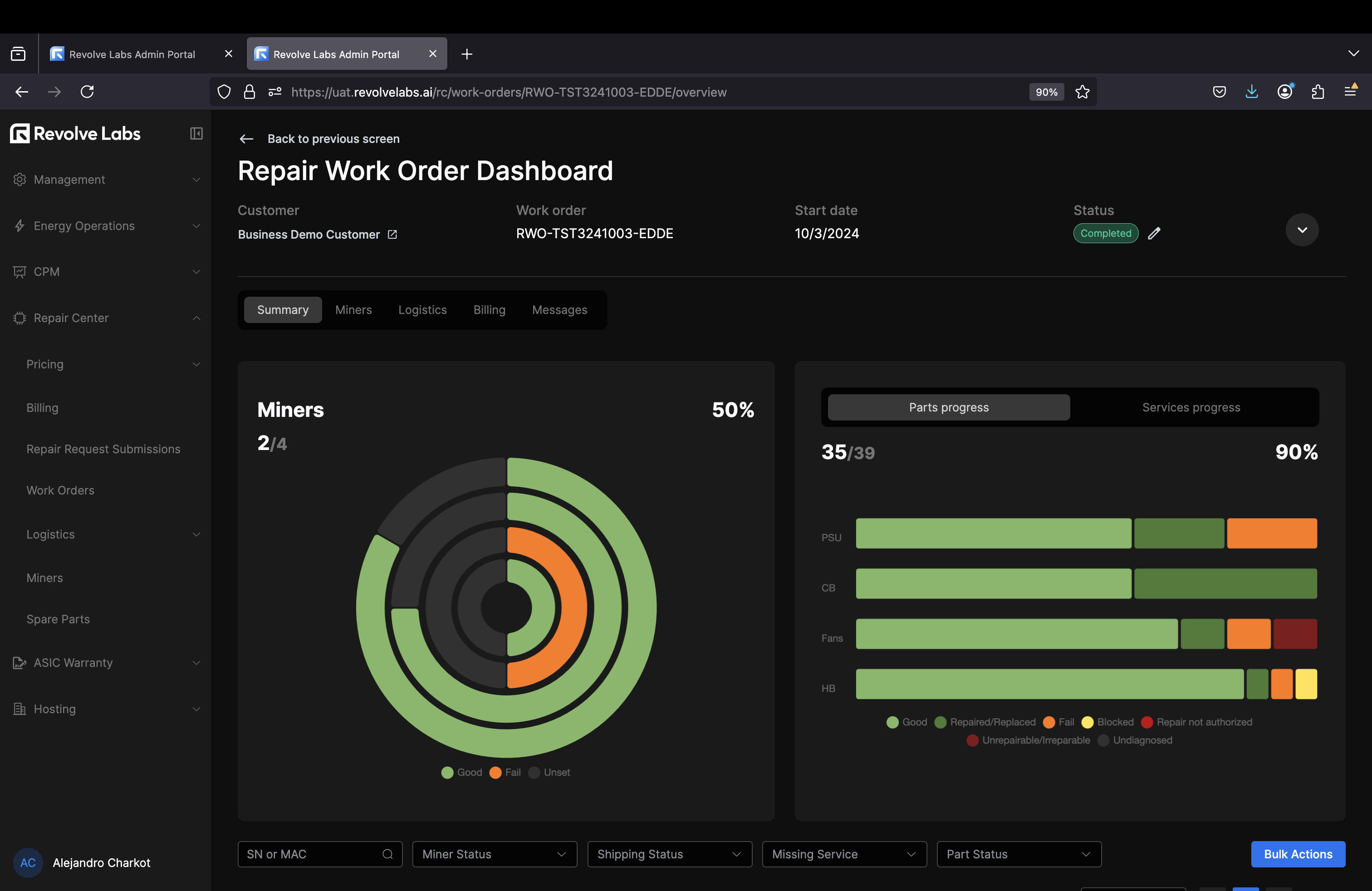
Clicking a Work Order row takes you to the Work Order dashboard, where you'll initially see the summary tab with progress charts and a miner status table. These elements are interconnected: selecting any chart area applies corresponding filters to the table below, while updating statuses or performing actions in the table automatically refreshes the charts to reflect these changes.
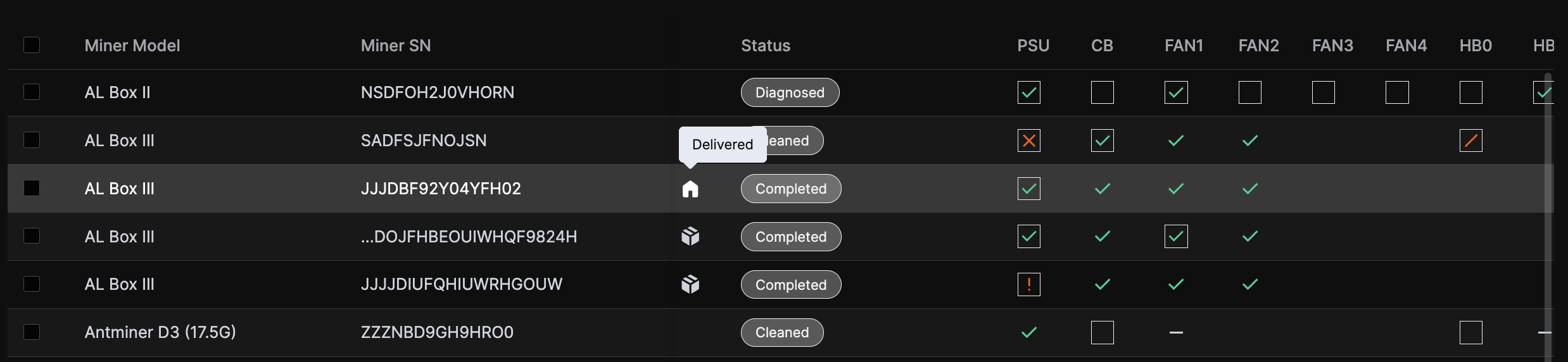
This table also displays logistics and repair status of miners. A box icon indicates the item is packed, a truck icon indicates it's been shipped (no longer at the RC), and a house icon indicates it was delivered back to the customer.
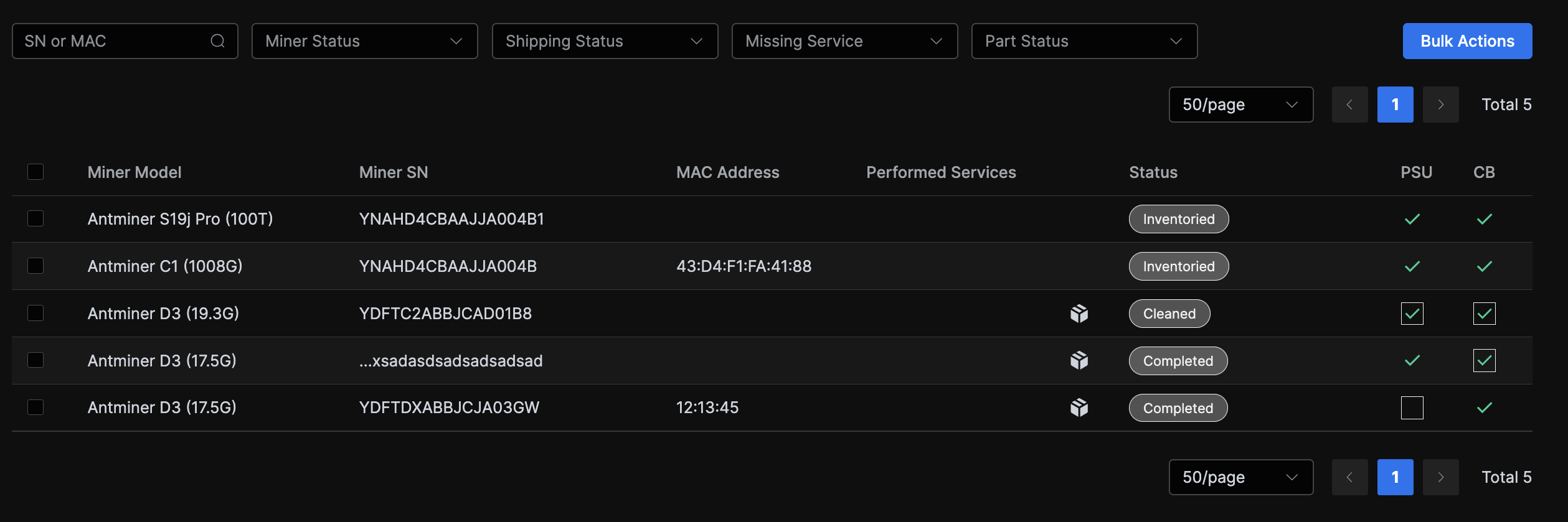
Actions on miners from the Summary table
The table allows for some Bulk actions. If no rows are selected, you'll see only Status update and Complete services in the menu, and they'll be applied to all miners. If one or more are selected, you'll see the additional Outbound container assignment and Work order movement options. Selecting exactly two or three items reveals the Consolidation option, which navigates to the consolidation screen.
Miners Tab
In the Miners tab, you'll find a table with the inventoried miners. You can update any SN or model by clicking a row's pen icon, and get to the miners repairs and details page by clicking the table rows.
Logistics Tab
The Logistics tab is divided into inbound and outbound columns, each displaying all the Work Order's containers, grouped by shipment. You can easily manage both from here, navigate to any shipment's details page with the icon, and to any container's details page by clicking the container's row.
The details about shipments and containers creation and management can be found on the logistics section of these docs.
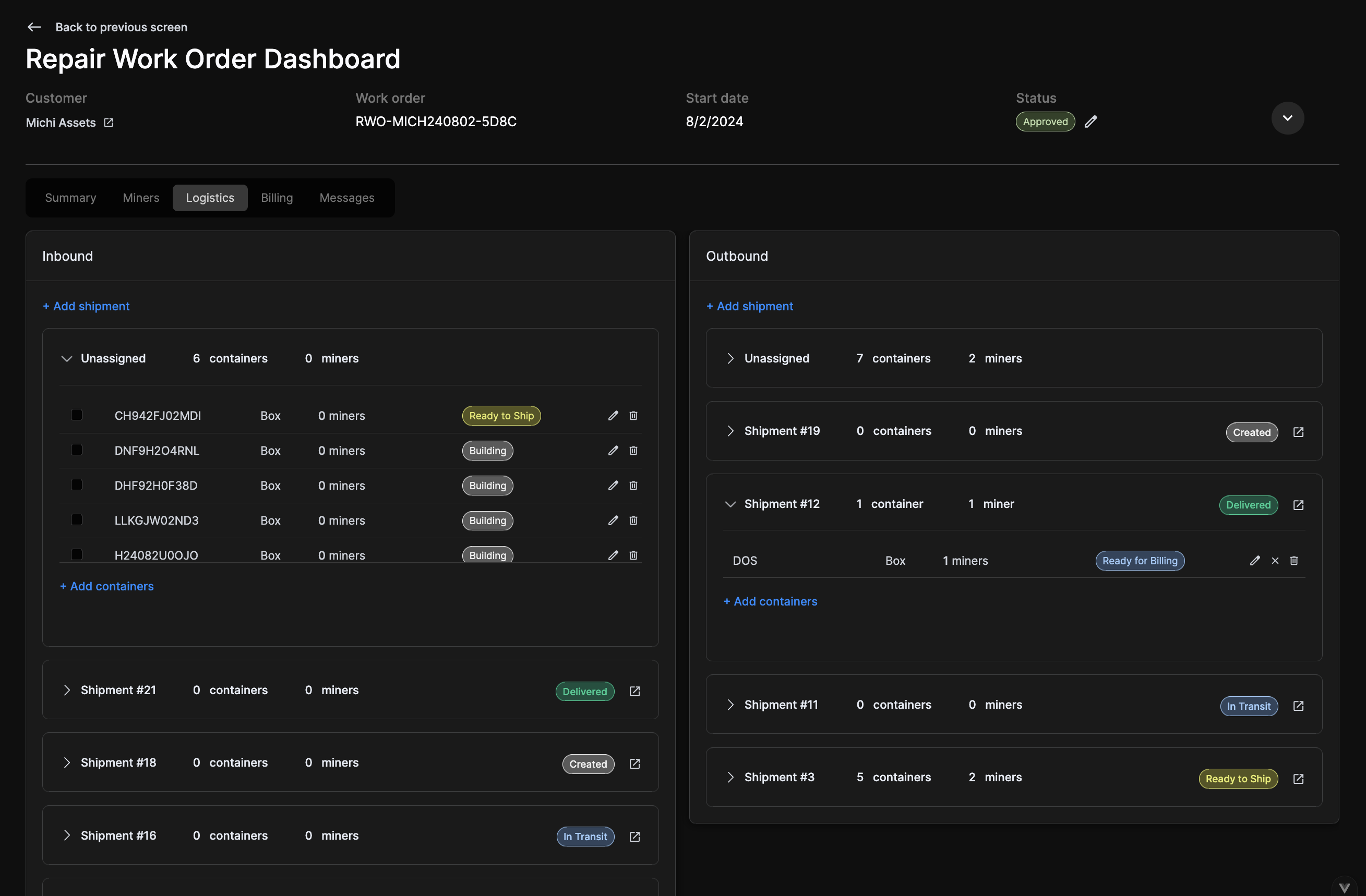
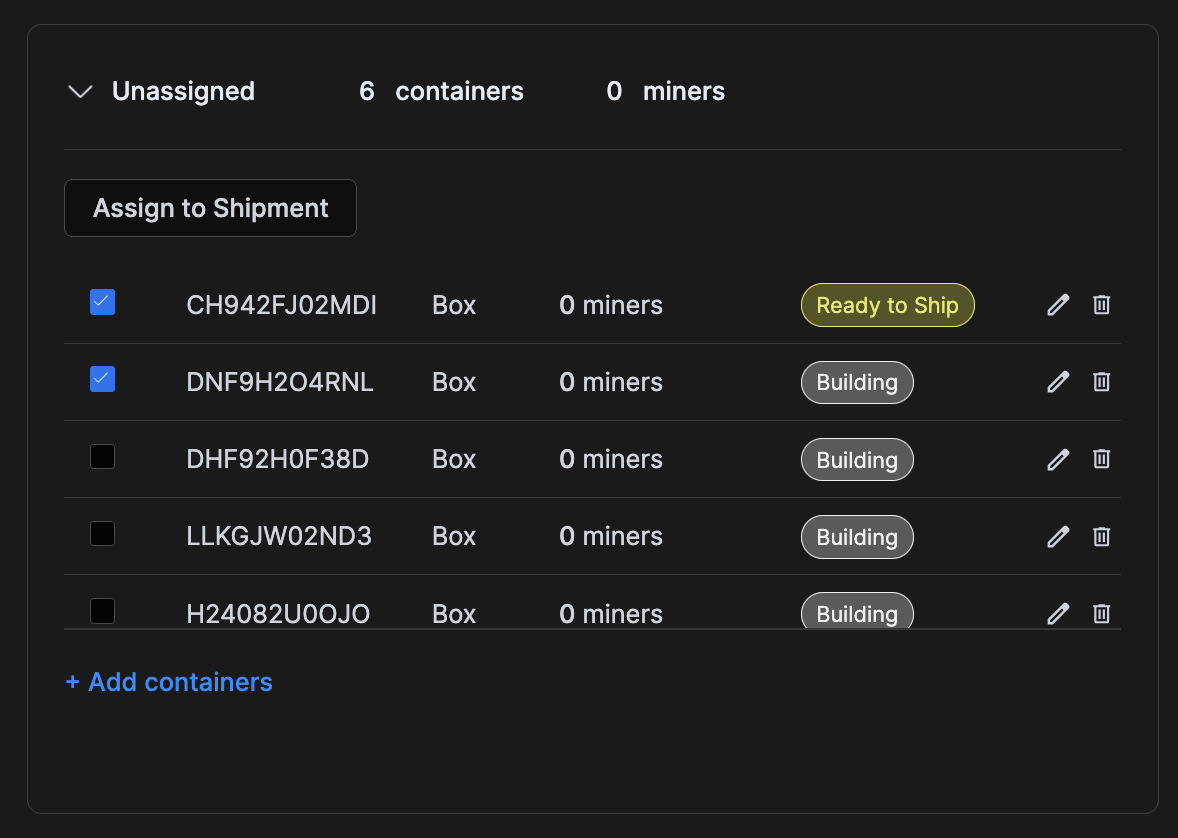
You can assign unassigned containers to existing shipments by checking them in the mini-table under the unassigned group and clicking Assign to Shipment.
Billing Tab
The Billing tab allows creating invoices and viewing the existing ones. Invoices are generated per container, and these have to be on 'Ready for billing' status before they can be invoiced.
Once created, an invoice can be managed using the header buttons on the far right, allowing you to change its status, regenerate it, download it as CSV, or delete it.

Messages Tab
Communicate directly with the customer via the Messages tab. Click the update button in the bottom right corner to see the latest messages.