Management
The Management app handles cross-application entities such as Sites, Customers, and Foreman configurations.
Sites
Use this view to create, update, and list sites.
To create a site, click Create Site, complete the required fields, and click Save. The site will appear in the list below. To update a site, click the (pen) icon. To delete a site, click the (trash) icon.
The table supports advanced filtering options, allowing users to apply multiple criteria as needed.
Customers
Note
Customer creation is restricted to the Admin role. Managers can view customers, while Operators and Customers can only see names where relevant.
Creating and Updating Customer Core Data
From the Customers page, click Create Customer and complete the form. Only the Alias and Email fields are required; the system will flag missing mandatory data. Other fields can be updated later.
The new customer appears in the list. Click the pen icon to update details, the trash icon to delete the customer, or the row itself to access the customer details page. From the details page, click View all info to see contact and billing information.
Managing Customers
The customer details page displays a per-application breakdown of settings. The Repair Center tab includes:
- Work Orders: Lists and links existing Work Orders and their Shipments.
- Repair Service Agreements: Displays the active Repair Service Agreement (one per customer) and version history.
- Repair Requests: Lists existing Repair Requests and status, with controls to approve, deny, or fulfill them.
Foreman Configuration
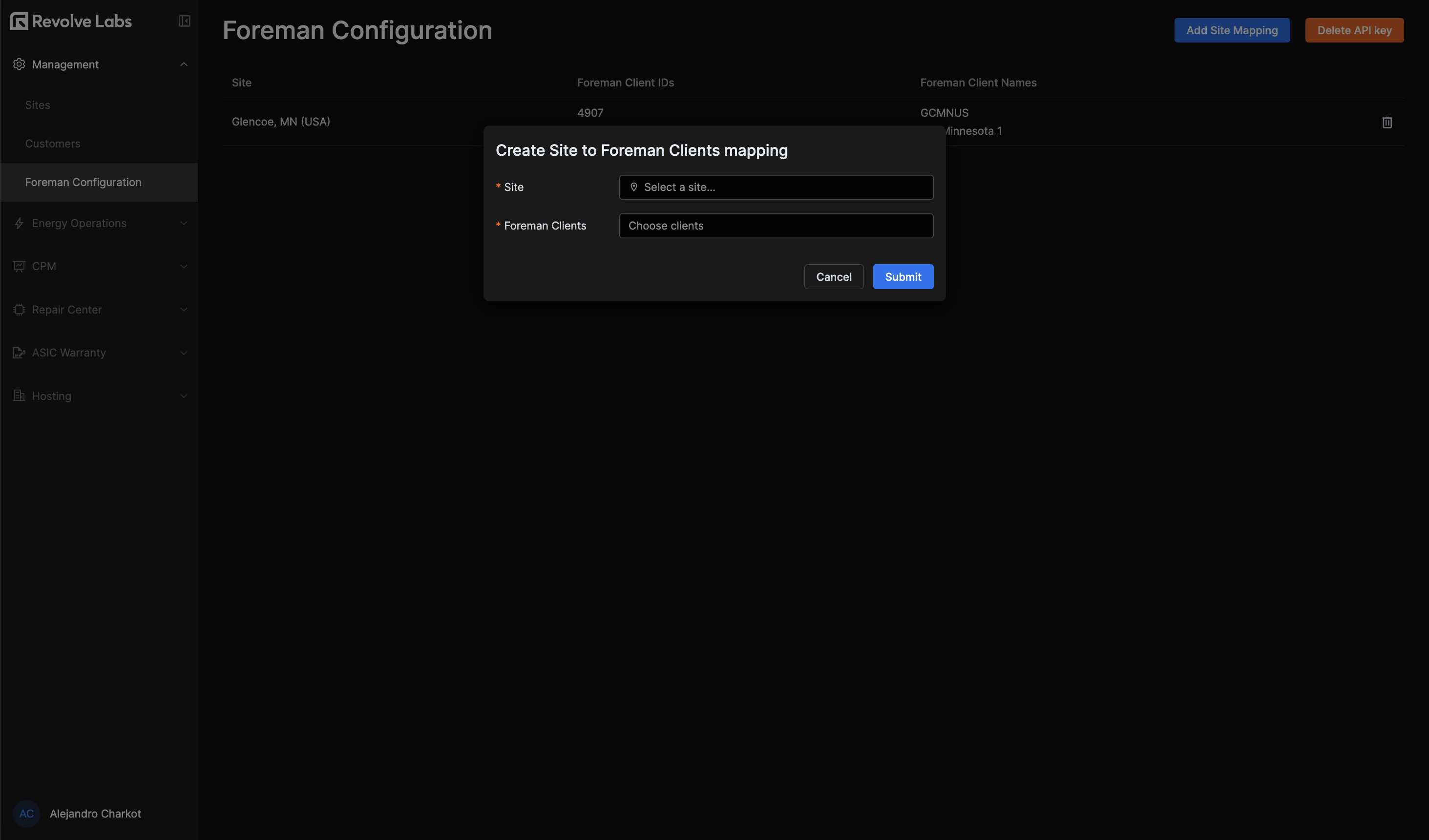
The Foreman configuration section links a Site to a Foreman client, retrieved via the Foreman API using the provided API key.